As we value the importance of the performance of our website in search engine optimization or the visibility of our website through any search engine whenever being search for, we should also also know how essential for us to know how to set the analytics of our website, as it would help our website see what to improve, what to show more and what to remove or do less. With the help of this guide, we will help you step by step to setup your Google Analytics.
1. Open your chosen web browser (Google, Mozilla Firefox, Microsoft Edge, etc.,)

2. Assuming that you have already signed in to your Google account
3. Go to https://marketingplatform.google.com/

4. Click the button “Start Measuring”

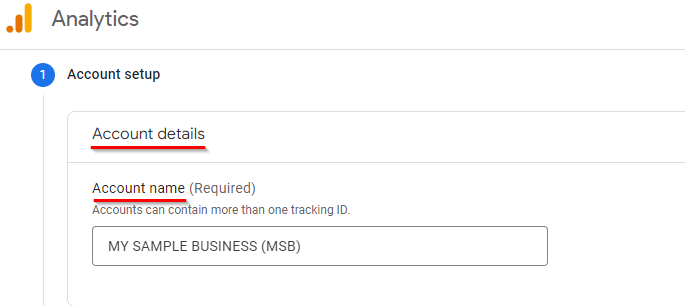
5. From the moment you click start measuring, Google will ask for your business name or account name
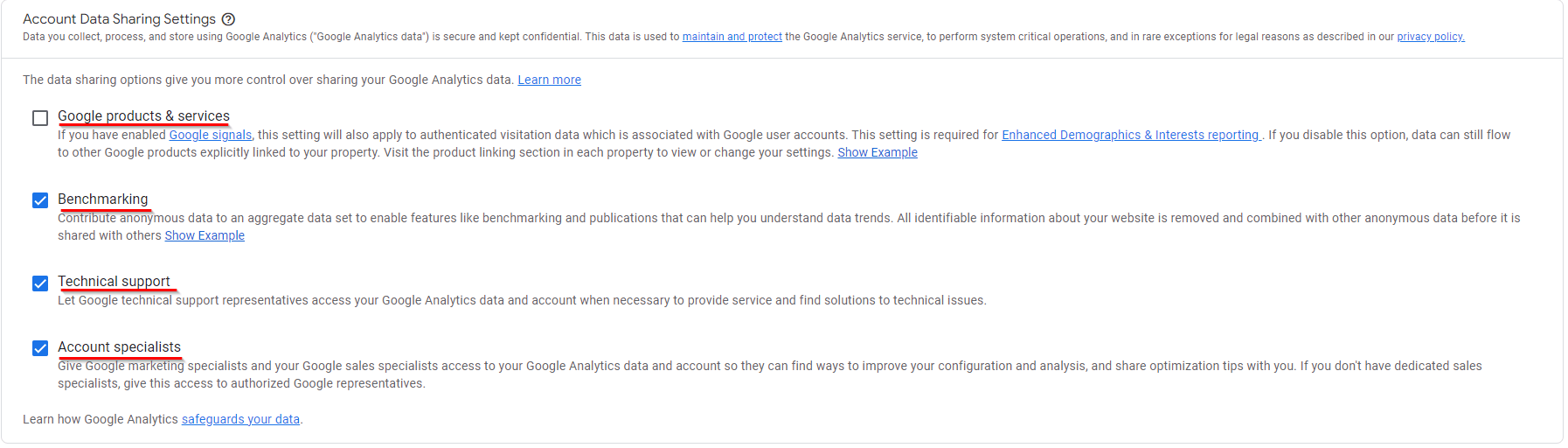
6. Read carefully as this will help Google to Control how you share your Analytics account data with other Google products and services, select what suit your business best.
7. Click Next
8. Next step will be giving your account a property name, reporting time zone, and currency.

9. You also have the option whether to only have Google Analytics 4 or both GA4 and Universal Analytics. Just click the show advanced options.
10. To turn or to make universal analytics just turn on the side button and click next.

11. When you’re done, just click Next.

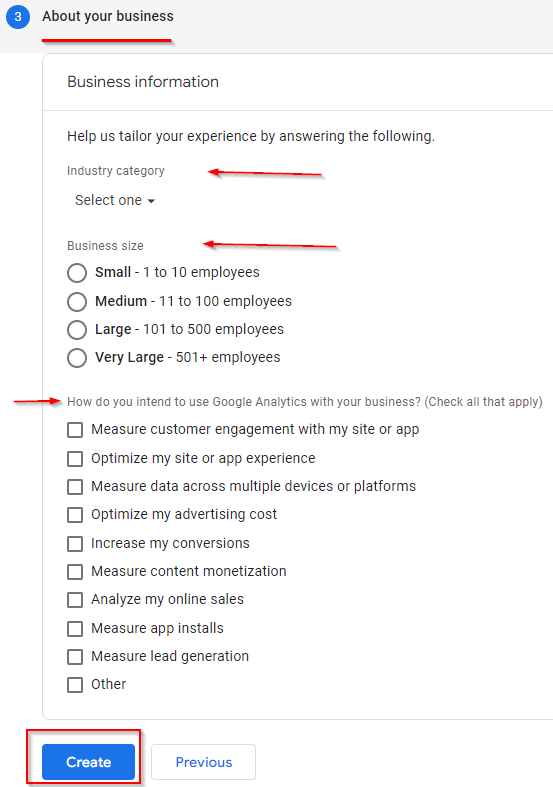
12. Next step will be giving more details about your business, industry category in what category does your business belong, business size how big is your business, does your business has more than or lower than 100 people involved, and lastly how do you want to use your Google Analytics to help your business. And, when you’re finally done providing these information just click the Create button.
13. After you have clicked the Create button, a popup form will be shown to you containing an agreement between you and google. Select your country/region, read the agreement and if you agree with everything then you can now proceed by checking the checkbox confirming that you accept their terms. Lastly, click the “I Accept” button.

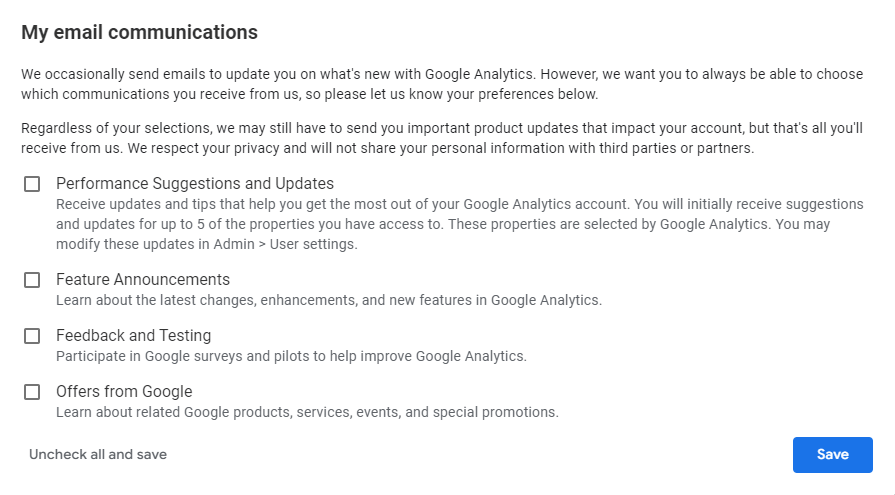
14. Another popup form will be shown to you after you successfully created a google analytics account. Choose your preferred email communications settings and click Save.
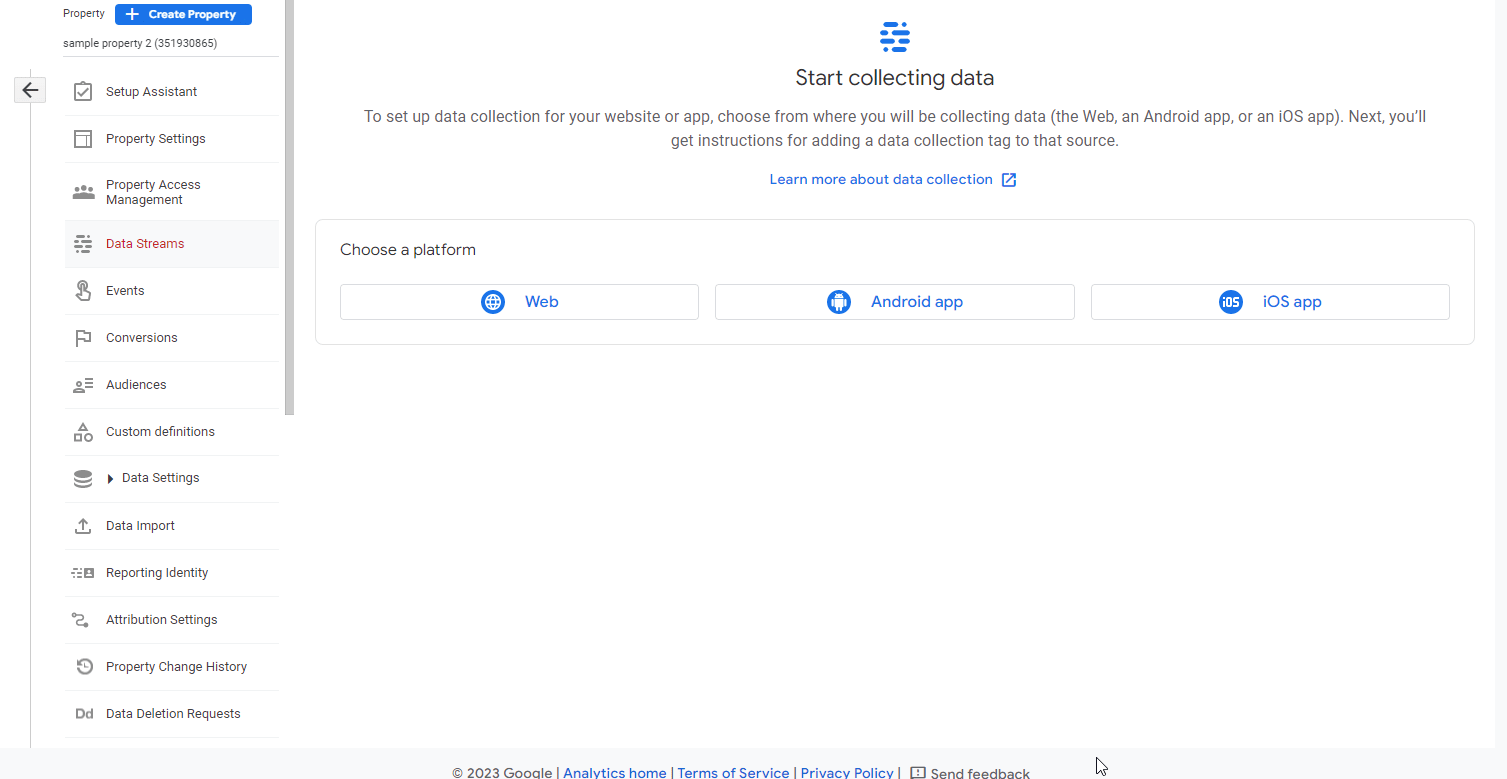
15. Under your analytics property you also have the option to choose what data or where you want Google to collect data about your site. Then just follow the Google instructions for this one.