
-
- Create a Bananaypay account. You can also contact us so we can provide you a direct contact from BananaPay team.
- Once you already have it, send a request from their support for them to provide you your API Key, SIGN Key and Notification Key.
- Install and activate the plugin “WooCommerce Payment + BananaPay Integration ” into your WordPress site.

- Click the “Settings” link below the plugin name so you will be redirected to the plugin’s setting.
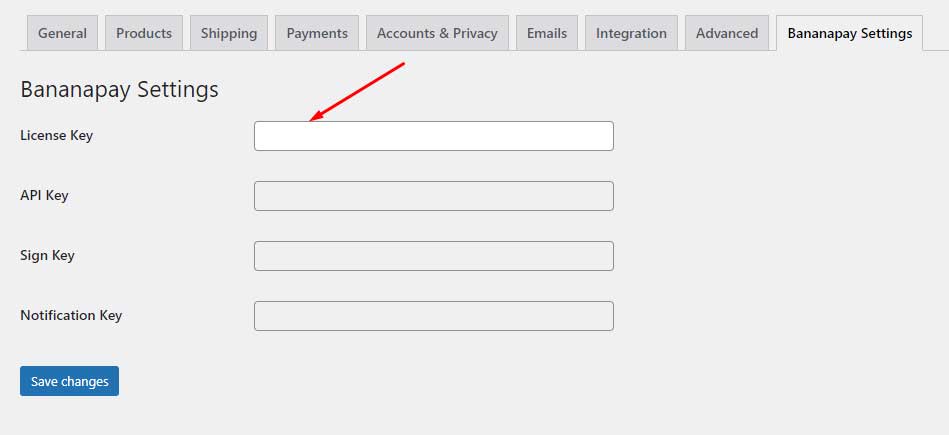
- First, input the “License Key” to activate the API Key, SIGN Key and Notification Key fields
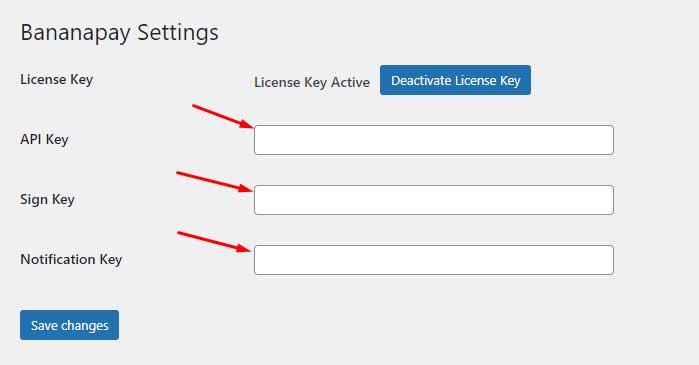
- After activate the license key. Add the API Key, Sign Key and Notification Key to their respective fields and click “Save changes” button.
- Go to Woocommerce settings page and click the “Payments” tab.

- Enable which payment gateway option you would like to be available in your WooCommerce checkout.

- Once they are enabled, the payment methods will appear in your checkout page.
